Why Does My Phone Storage Stay Full After Deleting Photos and Apps?
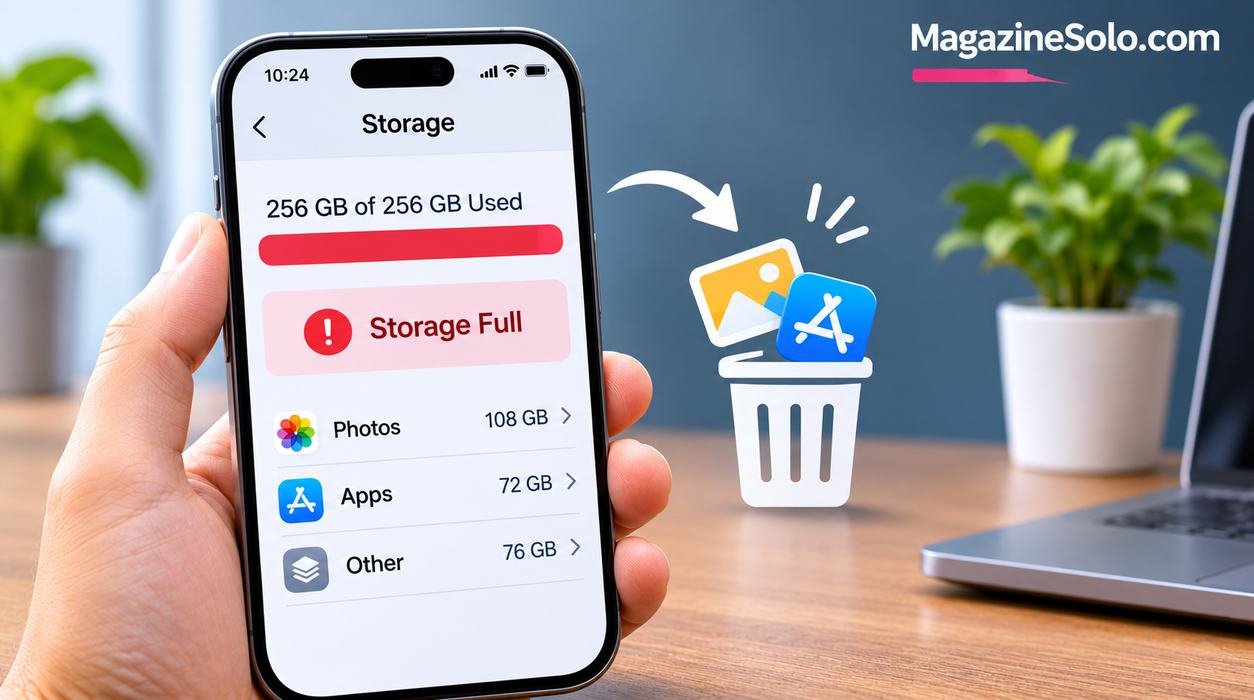
You delete hundreds of photos, remove several unused apps, and clear old videos from your phone. You expect to see plenty of free space afterward.
But when you check your storage settings, the same frustrating warning appears: Storage Almost Full.
If your phone storage is still full after deleting photos and apps, the problem may involve recently deleted files, app caches, downloaded content, system data, or storage calculations that haven’t updated yet.
Both iPhone and Android users can experience this issue, although the causes and solutions vary between devices.
The good news is that you usually don’t need to buy a new phone or perform a factory reset immediately.
This guide explains 10 practical ways to identify what’s using your storage and safely recover space without accidentally losing important files.
Why Is My Phone Storage Still Full After Deleting Everything?
Deleting files doesn’t always free up storage immediately.
Some apps temporarily retain deleted items so you can recover them later. Other applications store cached media, offline downloads, and documents separately from the files visible in your photo gallery.
Common reasons include:
- Photos remaining in Recently Deleted or Trash
- Large application caches
- Downloaded videos and music
- Messaging app attachments
- System data and temporary files
- Offline maps
- Duplicate files
- App documents and saved data
- Storage calculations that haven’t refreshed
- Files stored in other folders
Before deleting more content, check which storage category is actually using the most space.
1. Empty the Recently Deleted Folder
One of the most common reasons deleted photos continue occupying storage is that they haven’t been permanently removed.
Many photo applications retain deleted items temporarily.
On iPhone
Apple Photos typically keeps deleted photos and videos in Recently Deleted for up to 30 days.
To remove them permanently:
- Open the Photos app.
- Find Recently Deleted under Utilities.
- Unlock the album if requested.
- Review the items carefully.
- Select the items you want to permanently remove.
- Confirm deletion.
Important: Permanently deleted photos may not be recoverable. Verify that you have a separate backup before removing important files.
For official instructions, see Apple’s guide to deleting photos on iPhone.
On Android
If you use Google Photos:
- Open Google Photos.
- Navigate to Collections > Trash, or the equivalent menu.
- Review deleted items.
- Select files you no longer need.
- Choose the permanent deletion option.
Google Photos generally retains backed-up deleted items in Trash for 60 days and certain non-backed-up items for 30 days, although retention depends on the circumstances.
Deleting items from a synchronized photo library can also affect other devices and cloud copies.
Review the Google Photos Help Center before permanently deleting important content.
2. Clear App Cache on Android
Applications often store temporary information to improve performance.
This may include:
- Image thumbnails
- Previously loaded media
- Temporary downloads
- Website resources
- Application processing files
Over time, some apps can accumulate substantial cache data.
How to Clear App Cache
On many Android phones:
- Open Settings.
- Select Apps.
- Choose an application.
- Open Storage & Cache or Storage.
- Tap Clear Cache.
Menu names vary depending on the phone manufacturer.
Clear Cache vs. Clear Storage
| Option | What It Usually Does |
|---|---|
| Clear Cache | Removes temporary app files |
| Clear Storage or Clear Data | Resets app data and may remove saved information |
| Uninstall | Removes the app and typically its local data |
| Offload App on iPhone | Removes the app while retaining associated documents and data |
Avoid selecting Clear Storage or Clear Data unless you understand what will be removed.
Clearing cache may temporarily free space, but apps can recreate cached files during normal use.
3. Check Your iPhone’s System Data
On iPhone, storage categories can include iOS, System Data, applications, photos, and media.
System Data may include caches, logs, and other resources used by the operating system.
How to Check iPhone Storage
- Open Settings.
- Select General.
- Tap iPhone Storage.
- Wait for the storage information to load.
- Review the categories and recommendations.
Some temporary data is managed automatically by iOS.
There isn’t a universal button that safely deletes all System Data.
What Can Help?
Restart your iPhone.
Install appropriate iOS updates.
Review large application storage usage.
Remove unnecessary downloads.
Allow the system time to recalculate storage after major changes.
If System Data remains unusually large, consult Apple Support.
Avoid unverified applications promising to remove essential system files.
4. Delete Downloaded Videos and Music
Streaming applications may store offline content directly on your phone.
Examples include downloaded movies, television episodes, podcasts, and playlists.
These files can consume several gigabytes.
Where to Look
Check the Downloads or Offline section inside applications such as:
- Netflix
- YouTube
- Spotify
- Apple Music
- Podcast applications
- Other streaming services
How to Free Space
Open the application.
Review downloaded content.
Remove episodes, playlists, or videos you no longer need.
Check your phone storage again.
Remember that removing an offline download doesn’t necessarily delete your streaming account or subscription.
5. Clean Up Messaging App Attachments
Messaging applications can accumulate photos, videos, voice messages, and documents.
Even if you rarely save these files manually, they may occupy significant storage.
WhatsApp Storage
WhatsApp provides storage management tools on supported versions.
Look for:
Settings > Storage and Data > Manage Storage.
Review large files and frequently forwarded media.
Delete unnecessary items carefully.
iPhone Messages
On iPhone, review Messages storage through Settings > General > iPhone Storage, where supported.
You may be able to identify large conversations or attachments.
Important
Deleting attachments or conversations may remove information you want to keep.
Back up important documents and conversations before making irreversible changes.
6. Find Large Files in Your Downloads Folder
Your phone may contain downloaded files that don’t appear in the photo gallery.
These can include:
- PDF documents
- ZIP archives
- APK installation files
- Videos
- Audio recordings
- Presentation files
- Large documents
On Android
Open Files by Google or your manufacturer’s file manager.
Navigate to Downloads.
Sort files by size when available.
Review large files before deleting them.
Google provides guidance through the Files by Google Help Center.
On iPhone
Open the Files app.
Browse On My iPhone and relevant download folders.
Review locally stored files.
Be careful when deleting files from iCloud Drive because synchronized deletion may affect other devices.
7. Remove Duplicate Photos and Videos
Duplicate files can occupy unnecessary storage.
You may have multiple copies because of:
- Repeated downloads
- Messaging app attachments
- Photo editing
- File transfers
- Multiple saved versions
On iPhone
Supported versions of Apple Photos can identify certain duplicate photos and videos.
Look for Duplicates under Utilities.
Review the items before merging them.
On Android
Use the duplicate-file suggestions available in a trusted file management application, if supported.
Don’t automatically delete every similar-looking image.
Two photos may look almost identical but contain meaningful differences.
8. Review App Documents and Saved Data
Deleting an application’s visible files doesn’t always remove its other stored information.
Some apps maintain:
- Offline documents
- Project files
- Downloaded databases
- Saved media
- Local backups
- Editing resources
How to Investigate
Open your phone’s storage settings.
Sort applications by storage usage where available.
Identify unusually large apps.
Open the app and review its built-in storage controls.
Remove unnecessary local content.
If you decide to uninstall an app, confirm that any important data is backed up or synchronized first.
9. Restart Your Phone and Recheck Storage
Sometimes storage calculations take time to update after large deletions.
Restarting may help the system refresh certain temporary processes.
On iPhone
Restart the device using the appropriate procedure for your model.
Then open Settings > General > iPhone Storage.
On Android
Restart the phone.
Open Settings > Storage.
Compare the available space.
A restart won’t necessarily remove large caches or hidden files, but it’s a reasonable troubleshooting step before making more disruptive changes.
10. Back Up Important Data Before Considering a Factory Reset
A factory reset erases device data and returns the phone to its initial software configuration.
It should generally be considered only after safer troubleshooting options have failed.
Before Resetting
Back up photos and videos.
Verify important files are accessible from another device or location.
Confirm that contacts and other essential information are synchronized or backed up.
Save authentication and account recovery information.
Check that messaging app backups are complete.
Review the manufacturer’s reset instructions.
Never perform a factory reset simply because storage appears full without first investigating the actual cause.
If the storage issue continues despite appropriate troubleshooting, contact the phone manufacturer.
How to Check What’s Taking Up Storage on iPhone
iPhone provides a storage breakdown in Settings.
Navigate to:
Settings > General > iPhone Storage.
You can review categories such as applications, photos, media, and system information.
What to Look For
Identify the largest categories.
Review apps with substantial Documents & Data usage.
Check whether photos are still in Recently Deleted.
Look for offline downloads.
Review Apple’s storage recommendations.
Apple provides official guidance in its iPhone storage management documentation.
How to Check What’s Taking Up Storage on Android
Android storage settings vary by manufacturer.
On many phones:
- Open Settings.
- Select Storage.
- Review the storage categories.
- Open the largest category.
- Identify unnecessary files.
- Remove content carefully.
Some Android devices provide built-in cleanup recommendations.
Files by Google may also help identify large files and duplicates.
Use trusted applications rather than unknown storage cleaner tools.
Why Is iPhone Storage Full After Deleting Photos?
Several explanations are possible.
Photos may remain in Recently Deleted.
Other applications may be using more storage than expected.
System Data may include temporary files.
The storage calculation may not have refreshed.
What to Try
Empty Recently Deleted after verifying backups.
Restart the iPhone.
Check the largest applications.
Review downloaded media.
Allow storage information to update.
If the problem persists, consult Apple Support.
Why Is Android Storage Full After Deleting Apps?
Uninstalling applications generally removes their installed files and associated local data, but other storage categories may still be full.
Possible causes include:
- Cached files from remaining apps
- Large downloads
- Messaging media
- Offline videos
- Files in Trash
- Other applications using substantial storage
Check the actual storage breakdown rather than repeatedly deleting random applications.
Why Does My Phone Say Storage Full When I Have Free Space?
Sometimes a phone may display a low-storage warning even when the settings screen shows some available capacity.
Possible explanations include:
- An application requiring additional temporary space
- Storage information that hasn’t refreshed
- Large pending downloads
- System update requirements
- Application-specific storage limits
For example, installing an update may require more temporary space than the final update occupies.
Restart the device and review available storage before attempting the operation again.
Does Deleting Photos From Google Photos Free Phone Storage?
It depends on how the photos are stored and which deletion method you use.
Deleting a photo from a synchronized Google Photos library can remove it from the cloud library and synchronized devices.
By contrast, the Free up space feature is designed to remove eligible local copies that have been backed up.
Safer Approach
Confirm that backup is complete.
Use the official Free up space feature when appropriate.
Verify that important photos remain accessible in your Google Photos account.
Avoid permanently deleting cloud copies unless you intend to remove them.
Read the Google Photos Help Center for the current instructions.
Does iCloud Storage Free Up iPhone Storage?
iCloud Photos can help manage local photo storage when Optimize iPhone Storage is enabled.
However, iCloud storage and iPhone storage are different.
Purchasing additional iCloud storage doesn’t automatically increase your phone’s physical capacity.
What to Check
Open Settings.
Select your Apple Account.
Review iCloud Photos settings.
Check whether Optimize iPhone Storage is available and enabled.
Ensure your photos are safely synchronized before changing important settings.
Phone Storage vs. Cloud Storage
| Feature | Phone Storage | Cloud Storage |
|---|---|---|
| Location | Physical device | Remote service |
| Typical Use | Apps, files, system data | Backups and synchronized files |
| Capacity | Limited by device hardware | Depends on service plan |
| Internet Required | Not for most local files | Usually for remote access |
| Deleting Files | May free local capacity | May affect synchronized copies |
Understanding the difference can prevent accidental deletion.
How Much Free Storage Should You Keep?
There isn’t one universal amount of free space required by every smartphone.
However, keeping reasonable available capacity can help with:
- Operating system updates
- Application installation
- Temporary files
- Camera recording
- Downloads
- Normal system operations
The appropriate amount depends on your phone’s capacity, operating system, and usage.
If your device repeatedly runs out of space, consider reviewing large media files and applications regularly.
Can Full Storage Make Your Phone Slow?
Very low available storage can interfere with certain phone operations.
Possible effects include:
- Failed application updates
- Inability to capture new photos or videos
- Download failures
- Difficulty installing system updates
- Application errors
However, slow phone performance can also have other causes.
Freeing storage may help when insufficient space is the underlying problem, but it isn’t a guaranteed solution for every performance issue.
Should You Use a Phone Cleaner App?
Some legitimate file management applications can help identify large or duplicate files.
However, avoid applications that promise unrealistic improvements or request unnecessary permissions.
Before Installing a Cleaner App
Check the developer’s reputation.
Review requested permissions.
Prefer built-in storage management tools.
Avoid apps that require unnecessary access to personal data.
Be cautious of aggressive advertisements or subscription offers.
For most users, the phone’s built-in storage settings are a good starting point.
How to Prevent Phone Storage From Filling Up Again
A few regular habits can help you avoid repeated low-storage warnings.
Review Downloads Monthly
Remove unnecessary files after confirming they are no longer needed.
Manage Offline Media
Delete downloaded videos and playlists you’ve finished using.
Check Messaging Attachments
Review large media files stored by messaging apps.
Keep Backups Organized
Maintain reliable backups of important photos and documents.
Monitor App Storage
Identify applications that accumulate unusually large amounts of data.
Avoid Duplicate Downloads
Check whether a file is already saved before downloading another copy.
Use Cloud Storage Carefully
Understand how synchronization and deletion work before removing local files.
Related Technology Troubleshooting
If your smartphone has other performance or connectivity problems, these MagazineSolo guides may help.
Why Does My Phone Wi-Fi Keep Disconnecting While Other Devices Work?
Why Does My Phone Charge Slowly Even With a Fast Charger?
Why Does Bluetooth Audio Keep Cutting Out Even When Your Phone Is Nearby?
If you also use a laptop, explore why a laptop battery drains even when shut down.
These guides provide practical troubleshooting advice for common technology problems.
Frequently Asked Questions
Why is my phone storage still full after deleting photos?
Deleted photos may remain in Recently Deleted or Trash. Other applications, downloads, and system files may also occupy storage.
Why does my iPhone storage not decrease after deleting photos?
Recently Deleted items, application data, or delayed storage recalculation may explain the issue.
Does clearing cache free up storage?
Yes, clearing application cache can free temporary storage on supported devices, although cached files may be recreated.
Why is my Android storage full after deleting apps?
Other files, downloads, messaging attachments, and remaining application data may still occupy significant space.
Does deleting photos from Google Photos free storage?
It depends on whether you’re removing local copies, cloud copies, or synchronized items. Use the official backup-aware features carefully.
Can I delete iPhone System Data?
Some temporary system data is managed automatically. There is no universal safe option for manually deleting all System Data.
Will restarting my phone free storage?
A restart may help refresh storage information or temporary processes, but it won’t remove most large files.
Is it safe to delete the Downloads folder?
Only delete files you’ve reviewed and no longer need. Important documents may be stored there.
Does uninstalling an app delete its data?
Often it removes associated local data, but behavior varies by platform and app. Back up important information first.
Should I factory reset my phone to clear storage?
A factory reset is usually unnecessary as a first step. Investigate storage usage and try safer methods before considering it.
Final Thoughts
If your phone storage is still full after deleting photos and apps, start by checking Recently Deleted, application caches, offline downloads, and messaging attachments.
Review your phone’s storage breakdown to identify the largest categories instead of deleting files randomly.
On iPhone, pay attention to Photos, Documents & Data, and System Data. On Android, review app caches, downloads, and large files.
Most importantly, protect your personal information by verifying backups before permanently deleting photos, documents, or application data.
For official instructions, consult Apple Support, Google Photos Help, and Files by Google Help.
With a careful approach, you can often recover useful storage space without replacing your phone or losing important files.

Washim is a lifestyle and entertainment writer at MagazineSolo, specializing in fashion, beauty, wellness, celebrity trends, and modern living. She enjoys exploring fresh ideas and turning complex topics into engaging, reader-friendly stories. Her goal is to inspire readers with useful tips, creative insights, and informative articles.